





Cambro TV offers smart and digital television models designed to deliver modern home entertainment features at accessible price points. Whether you have purchased a new Cambro TV or are reinstalling one after relocation, setting it up correctly ensures optimal picture quality, stable connectivity, and smooth performance. This detailed guide walks through the complete setup process, from unboxing to fine-tuning settings, so you can enjoy a seamless viewing experience.
Unboxing and Preparing Your Cambro TV
The first step in setting up your Cambro TV begins with careful unboxing. Place the box on a flat surface and remove the TV gently, avoiding pressure on the screen panel. Inside the package, you will typically find the television unit, a stand or mounting accessories, a remote control, power cable, and a user manual. Before proceeding, inspect all components to ensure nothing is missing or damaged. Keeping the protective screen film intact until installation is complete helps prevent scratches during handling.
Position the TV in a well-ventilated area away from direct sunlight or heat sources. Proper placement reduces glare and ensures long-term durability of internal components.
Installing the Stand or Wall Mount
Cambro TVs can be installed using either the included stand or a compatible wall mount. If using the stand, attach it securely according to the manufacturer’s instructions, ensuring screws are tightened evenly. Place the TV on a stable, level surface to prevent tipping.
For wall mounting, confirm that your bracket is compatible with the TV’s VESA mounting pattern. Secure the wall mount to a solid wall structure, preferably anchored into studs or reinforced surfaces. Ensuring proper installation enhances safety and viewing comfort.
Connecting Power and External Devices
Once the TV is securely positioned, connect the power cable to a reliable electrical outlet. Avoid using overloaded extension cords, as voltage fluctuations can affect performance. After powering on the device, you can begin connecting external devices such as cable boxes, streaming devices, gaming consoles, or sound systems using HDMI ports.
HDMI cables provide high-definition video and audio transmission, making them the preferred option for most external connections. If you use older devices, additional ports such as USB or AV inputs may also be available, depending on your model.
Initial Setup and Language Selection
Upon turning on your Cambro TV for the first time, an on-screen setup wizard will typically appear. This guided process helps configure essential settings such as language, region, and display preferences. Carefully follow each step displayed on the screen, using the remote control to navigate through options.
Selecting the correct region ensures access to appropriate channels and streaming services, while setting your preferred language improves overall usability.
Connecting to Wi-Fi or Internet
To access smart features and streaming platforms, connect your Cambro TV to the internet. Navigate to the network settings menu and choose between wired (Ethernet) or wireless (Wi-Fi) connections. For Wi-Fi setup, select your home network from the available list and enter the password accurately.
A stable internet connection is essential for smooth streaming, app downloads, and software updates. If experiencing connectivity issues, placing your router closer to the TV or using an Ethernet cable can improve signal strength.
Scanning Channels and Configuring Input Sources
If you plan to watch local broadcast channels, connect an antenna or cable line to the designated input port. Access the channel scan option in the settings menu to automatically detect available channels. This process may take several minutes but ensures that all accessible channels are stored in the TV’s memory.
Additionally, label your input sources clearly within the settings menu. Naming HDMI ports according to connected devices, such as “Gaming Console” or “Streaming Device,” simplifies switching between inputs.
Adjusting Picture and Sound Settings
After completing the initial setup, optimizing picture and audio settings enhances your viewing experience. Cambro TVs usually offer preset picture modes such as Standard, Cinema, and Dynamic. Adjust brightness, contrast, and color levels according to your room lighting conditions.
Audio settings can also be customized for clarity and balance. If you use external speakers or a soundbar, configure the audio output accordingly to ensure synchronized sound performance.
Updating Software and Installing Apps
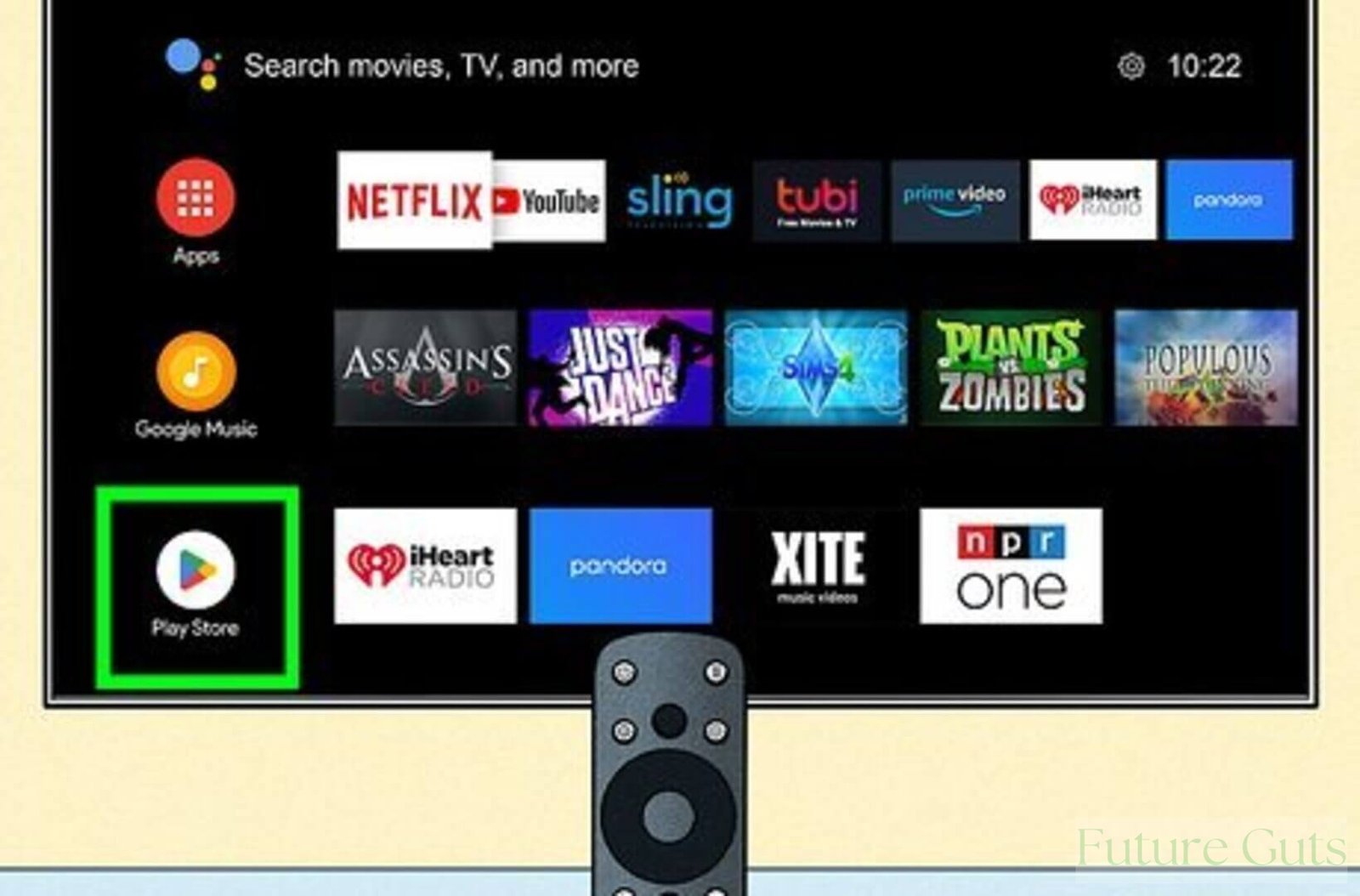
Smart Cambro TV models may prompt you to install the latest software updates during setup. Installing updates improves system stability, security, and compatibility with apps. After updating, you can access the app store to download streaming services, entertainment apps, and other supported applications.
Regular software updates help maintain performance and prevent technical issues over time.
Troubleshooting Common Setup Issues
If the TV does not power on, double-check the power connection and remote batteries. For internet issues, verify your Wi-Fi password or restart your router. If external devices fail to display, ensure HDMI cables are properly inserted and functional. Most minor issues can be resolved through basic troubleshooting steps before seeking technical support.
Conclusion
Setting up your Cambro TV correctly ensures you enjoy high-quality visuals, clear audio, and reliable smart features from the start. By carefully installing the hardware, configuring network settings, optimizing display preferences, and keeping the software updated, you create a stable and enjoyable home entertainment system. Following these easy step-by-step instructions allows you to maximize the full potential of your Cambro TV while avoiding common setup mistakes.

Other Articles

The Complete Guide to the Friends Glossary
United Flight UA109 Diversion: What Happened?